How to Edit & Fix Transaction Categories
ScrutiBank categorises every transaction automatically the moment you import a statement — but you are always in control. This guide shows how to change a single transaction’s category, correct a mistake, and teach the app a rule that re-categorises every matching transaction for you, now and on future statements.
The short version: click a transaction, click its category, pick a new one, and press Update Category. To fix every transaction from the same shop in one go, turn on Apply to matching transactions before you confirm.
Where categories come from
Every transaction is assigned a Category and an optional Subcategory automatically, using built-in rules, your own saved rules, and an on-device AI as a last resort. A small badge on each line tells you how it was decided — rule, ai or manual once you have edited it yourself. The categoriser runs entirely on your own computer, and no bank transactions are uploaded. The only thing that ever syncs to the cloud is the keywords you pick to override a category — that is what a “rule” is — so your choices follow you across devices (more on that below).
Change one transaction’s category
Four steps, about a minute the first time:
- 1
Open the Transactions view
Import your statement(s), then go to Transactions. Every line is already categorised automatically — each row shows its primary Category and Subcategory.
- 2
Click the transaction you want to change
Selecting a row opens the detail panel on the right, with the full description, amount, balance and the current category.
- 3
Open the category editor
In the detail panel, click the category — or the Edit Category button (it reads Assign Category if the line has none). The Change Category window opens, organised in two numbered steps.
- 4
Pick the new category (and an optional subcategory)
Step 1: choose a Primary Category from the left column; its subcategories appear on the right. A subcategory is optional — you can stop at the primary category. Step 2 (keywords) is optional for a single transaction — just click Update Category.
The change applies to that transaction straight away and is marked as your manual choice — the automatic categoriser will never overwrite it.
Fix every transaction from the same merchant at once
If a shop, employer or subscription keeps landing in the wrong category, you can fix it everywhere with a single rule — no need to edit each line.
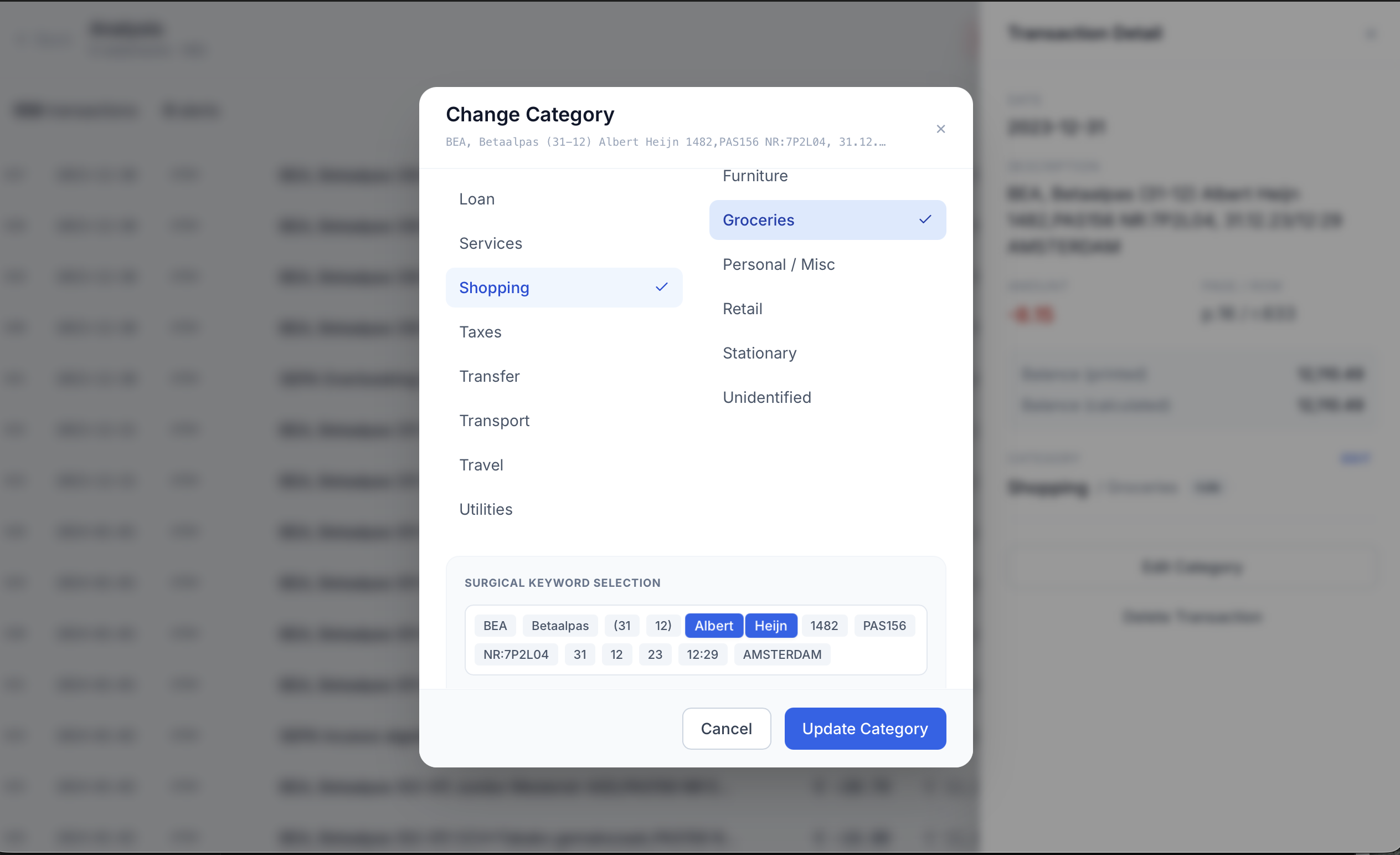
In the same Change Category window, look at Surgical Keyword Selection. The transaction’s description is broken into tappable words — click the one or two that uniquely identify the merchant (for example ALBERT and HEIJN, ignoring dates and reference noise), or type your own keyword in the box. Then:
- Pick the correct category (and subcategory, if you want one).
- Tap the word(s) that identify the merchant, or type a custom keyword.
- Tick Apply to matching transactions.
- Click Update Category.
As soon as you select keywords, ScrutiBank shows a live match count — how many transactions the rule will re-categorise — so you can check the reach before you confirm. When you click Update Category, every matching transaction is updated and a toast tells you exactly how many lines changed, with an Undo button in case the rule caught more than you meant. The rule is remembered, so the same merchant is categorised correctly on every statement you import in the future.
Tip — keep keywords distinctive. Choose the fewest words that still uniquely identify the merchant. If you pick more than one word, a transaction must contain all of them (in any order) to match — so BUDGET + ENERGY catches every Budget Energie line without touching other merchants. A single keyword that is too short or too common (like BV or PAYMENT) is rejected or can match transactions you did not intend — the live match count shows you straight away.
Find the transactions that still need attention
When some lines have no category yet, the Transactions view shows a Review N uncategorised pill — click it and ScrutiBank walks you through the uncategorised lines one at a time, opening the category editor for each and jumping to the next automatically. You can also work the list by keyboard: ↑ ↓ to move between rows and Enter to open the editor. The search box and the Uncategorised only filter are still there when you prefer to browse.
Manage your saved rules
Every rule you create is listed under Settings → Category rules — open Settings with the gear icon (available on every screen), or jump straight there with the Category rules button on the Analysis screen. For each rule you can see the keyword and the category it assigns, edit the category with a dropdown, or delete the rule. Rules whose keyword is too generic to be trusted are marked IGNORED, and a single button removes all of them at once.
Your statements stay private — your rules follow you across devices
ScrutiBank is the only app that provides bank-transaction forensic analysis, and it does the analysis on your own machine — no bank transactions are uploaded. Your statements, transaction descriptions, amounts, dates, account numbers and the names of the people you pay all stay on your computer. Once your transactions are categorised, that same on-device data powers automatic forensic reports, expense breakdowns and multi-account money-flow tracing.
The one and only thing ScrutiBank syncs to the cloud is your rules — and a rule is simply a keyword you chose to override the default category. For example, you decide that anything containing ALBERT HEIJN should be filed under Shopping / Groceries; what gets synced is exactly that pair, the keyword and the category, and nothing else. There is no other bank data in the cloud: no transaction descriptions, no amounts, no dates, no account numbers and no names. The rules are stored under your own anonymised account in a secured database in the European Union (the Netherlands), purely so that your categories follow you when you install ScrutiBank on another computer. If you never customise a category, nothing is saved or synced at all, and you can review, export or delete your rules at any time. See the Privacy Policy for the full detail.
Frequently asked questions
- Will my manual changes be overwritten the next time I import a statement?
- No. A category you set by hand is marked as a manual choice and is protected — the automatic categoriser and the on-device AI will never overwrite it. If you also turn on “Apply to matching transactions,” ScrutiBank saves it as a rule and applies it to every new statement you import from then on.
- Does editing a category use an AI transaction?
- No. Editing categories and creating keyword rules are completely free and never touch your AI-transaction balance. In fact they save AI transactions: once a rule matches a description, ScrutiBank assigns the category instantly and skips the AI entirely.
- How do I re-categorise every transaction from the same shop at once?
- Use “Surgical Keyword Selection” in the Change Category window: tap the word(s) in the description that identify the merchant (or type your own), tick “Apply to matching transactions,” and click Update Category. As soon as you pick keywords, ScrutiBank shows a live count of how many transactions the rule will re-categorise, so you can check the reach before you confirm. If you pick more than one word, a transaction must contain all of them (in any order) to match — “Budget” + “Energy” matches every Budget Energie line and nothing else.
- Can I undo a category change?
- Yes. After you apply a rule to matching transactions, a toast appears telling you how many lines were re-categorised, with an Undo button — one click removes the rule and restores every previous category. You can also open the same transaction again and pick a different category, or delete the rule later in Settings → Category rules. Nothing is permanent.
- How do I see, edit or delete the rules I have already created?
- Open Settings (the gear icon, available on every screen) and go to Category rules — the Analysis screen also has a direct Category rules button. Every saved rule is listed with its keyword and category; you can change the category with a dropdown, delete a rule, and remove all ignored legacy rules in one click.
- Can I invent my own category names?
- Categories come from ScrutiBank’s fixed forensic taxonomy so that reports, charts and money-flow tracing stay consistent and court-ready. You assign each transaction from that list — and when you want to group categories your own way, build a Custom Report.
- Where are my category rules stored — does anything get uploaded?
- No bank transactions are uploaded. Your statements, transaction descriptions, amounts, dates, account numbers and names never leave your computer. The only thing ScrutiBank syncs to the cloud is your rules — and a rule is just a keyword you chose to override a category, for example “ALBERT HEIJN” → “Shopping / Groceries.” That keyword-and-category pair is all that is stored, under your anonymised account in a secured EU (Netherlands) database, so your categories follow you to a new device. If you never customise a category, nothing is saved or synced at all, and you can review, export or delete your rules at any time. The Privacy Policy has the full detail.
Don’t have ScrutiBank yet? It’s free to start — 200 transactions on your first install, no subscription.
Download ScrutiBank free